Rob Kraft's Software Development Blog

Software Development Insights

Advantages of Making Your Methods Idempotent and Static in C#

Posted by robkraft on June 22, 2014

THIS ARTICLE IS INCORRECT

I apologize for putting incorrect information on the Internet.  This article explains “Pure Functions”, not “Idempotent Functions”.  I have written a new article to provide a more accurate description of “Idempotent” and also “Pure Functions” here:

https://csharpdeveloper.wordpress.com/2014/06/28/advantages-of-pure-functions-and-idempotent-functions-in-net/

My thanks to Phil Atkins in Cambridge, UK for making me aware of my error.


Read the rest of this entry »

Posted in Code Design, CodeProject, Coding | Leave a Comment »

Use Fuzzy Hours for Your Software Task Time Estimates

Posted by robkraft on June 14, 2014

Like many software development shops, we need to provide estimates of the time required to fix each bug and add each new feature.  The primary reason for the estimates is to set expectations for when tasks will be completed and to prioritize what is to be worked on.

As an agile shop, we have tried a few scales for estimating such as:

tiny, small, medium, and large and also the Fibonacci sequence:    1, 2, 3, 5, 8

but the one we have been using for years that we like best is fuzzy hours.

We use the symbols 1,2,3, and 4 where:

  • 1 means 0 to 2 hours
  • 2 means 1 to 8 hours
  • 3 means 4 to 40 hours
  • 4 means more than 30 hours

Notice that our ranges overlap and that is what makes them fuzzy.  When an estimator feels an estimate is in a fuzzy zone it is up the estimator to pick one zone or the other based on their gut feeling.

We have also learned that the velocity for all items sized 1 and 2 are the same, and items with a size 3 take only slightly longer to reach a completed state (development, testing, quality assurance, and documentation all complete).  Items with a size of 4 take longer, but only about twice as long on average as a 3.

Posted in Estimating, Process | Leave a Comment »

Use “NETWORK SERVICE” to Start SQL Server Service in 2014 on Local Computer

Posted by robkraft on May 14, 2014

I had a really hard time getting the SQL Server 2014 install to succeed.  I spent days on it.  I uninstalled all my earlier SQL Server Editions, which is a tedious process because you need to uninstall a lot of different components in specific order.  The SQL Server 2014 install then succeeded, but the SQL Server service would not start.

Event viewer showed this error when trying to start SQL Server:
Initializing the FallBack certificate failed with error code: 1, state: 20, error number: 0.

I tried configuring the SQL Server Service to start using a different windows account, but that did not work either, although I was on the right track.  I did need to change the account used by SQL Server, but I needed to do it during the install process.  So, I uninstalled all the SQL Server components again, then ran the install again.

Apparently the default SQL Server service account is not working on my Windows 7 machine, so I need to pick a different account, and that account needed to be “Network Service”.  I tried several other promising looking accounts such as “Administrator”, “LOCAL SERVICE”, and “SERVICE”, but only “NETWORK SERVICE” from my local machine security group worked.

Don’t do this on production servers, it is not the best security choice.

Select NETWORK SERVICE to get SQL Server 2014 to work

Select NETWORK SERVICE to get SQL Server 2014 to work

Posted in SQL Server | Leave a Comment »

How I Figured Out Why I Could Not Get To My WebSite Hosted at Arvixe.com, But Others Could

Posted by robkraft on April 19, 2014

I encountered an unusual problem last night when I attempted to view one of my web sites (http://www.KraftSoftware.com).  I could not get to the web site.  Fiddler showed me a 502 response.  My site is hosted at arvixe.com and I use the name cp.violet.arvixe.com to connect to and manage my web site, but I also could not even connect to cp.violet.arvixe.com.  I scanned twitter for arvixe but found no one else complaining about outages.  Maybe others had not realized the problem yet.  Fortunately I was able to get to support.arvixe.com to chat with a technician.  He said there was no problem, that both sites were accessible and ended our chat.  That did not please me.  I opened a chat with a better technician at arvixe.

He told me that they could access the site, and we bounced some ideas back and forth.  I sent him the result of my traceroute, then I went to bed.

Tracing route to stats.violet.arvixe.com [198.252.79.4]
over a maximum of 30 hops:

1     1 ms    <1 ms    <1 ms  192.168.1.1
2    36 ms    28 ms    30 ms  cpe-65-28-0-1.kc.res.rr.com [65.28.0.1]
3    16 ms    15 ms    12 ms  tge7-2.lesmmo11-cer1.kc.rr.com [65.28.16.138]
4    13 ms    17 ms    13 ms  tge0-9-0-7.ksczmogn01r.kc.rr.com [98.156.42.246]
5    39 ms    27 ms    27 ms  ae30.dllatxl3-cr01.kc.rr.com [98.156.42.0]
6    28 ms    27 ms    27 ms  107.14.19.92
7    25 ms    24 ms    24 ms  ae-3-0.pr0.dfw10.tbone.rr.com [66.109.6.209]
8    24 ms    50 ms    34 ms  po21.bbr02.eq01.dal01.networklayer.com [66.109.9.222]
9    29 ms    28 ms    24 ms  ae5.dar01.sr01.dal05.networklayer.com [173.192.18.215]
10    24 ms     *       52 ms  po1.fcr03.sr03.dal05.networklayer.com [173.192.118.143]
11     *        *        *     Request timed out.
12     *        *        *     Request timed out.
13     *        *        *     Request timed out.
14     *        *        *     Request timed out.
15     *        *        *     Request timed out.
16     *        *        *     Request timed out.
17     *        *        *     Request timed out.
18     *        *        *     Request timed out.
19     *        *        *     Request timed out.
20     *        *        *     Request timed out.
21     *        *        *     Request timed out.
22     *        *        *     Request timed out.
23     *        *        *     Request timed out.
24     *        *        *     Request timed out.
25     *        *        *     Request timed out.
26     *        *        *     Request timed out.
27     *        *        *     Request timed out.
28     *        *        *     Request timed out.
29     *        *        *     Request timed out.
30     *        *        *     Request timed out.

Trace complete.

The next morning an Arvixe tech had sent me an email asking me for my IP address.   I supplied it to them 6 hours ago but have not heard another response from them yet.  So I started doing some more research.

After disabling the wireless on my phone (so that my phone would not be going to the Internet over the same connection as my home PC), I went to my web site and it was working from my phone.  I then went to www.pingwebsite.com and pinged my server web IP (192.252.79.4) and only 4 of the 10 hosts were able to get a response.

I emails to ‘admin@dnstinations.com’ and ‘dnsadmin@us.ibm.com’ because they were the apparent owners of the last node the tracert reached successfully (po1.fcr03.sr03.dal05.networklayer.com [173.192.118.143] ).  It is a Saturday, and I have no response from them yet.

I then considered that my IP address had been blacklisted.  I went to http://whatismyipaddress.com/blacklist-check and entered my IP Address for my server 198.252.79.4 and it showed that my site was blacklisted by two spamhaus.org servers, but not by any of the other 60 servers on the list.  One of the links from this site took me directly to the reason for the block by spamhaus.org at http://www.spamhaus.org/sbl/query/SBL213271. This document told me that a site named primus.com.mk was being blocked as a spammer.  The IP address for that site was the same as my site IP address (www.KraftSoftware.com).  So apparently my site, and all of my sites hosted at arvixe.com, have the misfortune of being on the same server as a spammer.

At this time I think there is nothing I can do except to ask Arvixe.com to move my sites to a different server and IP Address, or for me to move my sites to a different web hosting provider.  And of course I asked Arvixe.com to shut down primus.com.mk and get my IP address off of the blacklist.

At the moment, I am just waiting for their response.

UPDATE AND RESOLUTION:

So I was wrong about the blacklist being the cause of my site not working.  The blacklist just blocks emails, not web sites.  The problem was that my home security system was sending so many pictures to store on my site that it triggered a DDOS response and was blocked.  I have changed my security camera to send fewer pictures and will hope it doesn’t happen again.

Posted in I.T., Online Resources, Web Sites | Leave a Comment »

My Least Favorite New Feature in SQL Server 2014 – No CTRL+E

Posted by robkraft on April 4, 2014

Since as long as I can remember, perhaps back to SQL Server 6.5, I’ve been using CTRL+E to “execute” queries inside SQL Server Management Studio.  I knew that Microsoft warned they were going to eliminate that keystroke, and they finally have in SQL Server 2014.  Now the only keystroke for running queries appears to be F5.  I consider this a productivity setback because to hit F5, I have to lift my palm off of its resting position by the keyboard, then relocate my fingers back on the keyboard correctly to continue typing.  I did not need to do this when using CTRL+E.

Is it possible to complain enough to get a response from Microsoft?  I’m not asking for CTRL+E to come back, but I would like a key combination that does not require me to take my hands of the keyboard to use it.  I like running queries!

Posted in SQL Server | 1 Comment »

Error ORA-1153 using Oracle.ManagedDataAccess.DLL to connect

Posted by robkraft on March 17, 2014

We switched from using Oracle.DataAccess.DLL to Oracle.ManagedDataAccess.DLL in our .Net App.  The code change took minutes, but all the connection string  changes took me a few hours to resolve.  The last error I kept receiving when I tried to connect to Oracle was ORA-1153.  Specifically I had the following values in the exception:

  • HResult: -2147467259
  • Message: Oracle error ORA-1153 encountered
  • Source : Oracle Data Provider for .NET, Managed Driver

This error occurred when the code tried to open the connection

  • _cnOra.Open();

The error occurred because I was missing the CONNECT_DATA value from the descriptor in my datasource of my application .config file.  I had this value:

<dataSource alias=”dev” descriptor=”(DESCRIPTION=(ADDRESS=(PROTOCOL=tcp)(HOST=myServerName)(PORT=1521)) )”/>

when I should have had this value:

<dataSource alias=”dev” descriptor=”(DESCRIPTION=(ADDRESS=(PROTOCOL=tcp)(HOST=myServerName)(PORT=1521)) (CONNECT_DATA = (SERVICE_NAME = dev)))”/>


Posted in Coding | 2 Comments »

Federal Unemployment Tax (FUTA) Credit Reduction for Missouri in 2014 is 0.0%

Posted by robkraft on January 18, 2014

At the time this article was originally written, January 2014, a credit reduction was expected.  But Missouri managed to pay its debts to the Federal Government on time so the credit reduction was removed; or reduced to 0.0.  It appears that the credit reduction will be 0.0 in 2015 as well.

In 2014 the FUTA Credit Reduction in Missouri is increasing from .09 to .12.

Q. What does this mean for Missouri employers?

It means that you will pay a little bit more in FUTA (Federal Unemployment Taxes) to the federal government this year.

Q. What is going on and why did it increase?

Every year states borrow money from the federal government to pay unemployment to unemployment recipients.  If a state fails to repay all the money they borrow, then the state is subjected to a “credit reduction” the result of which is that employers in the state pay more unemployment tax to the federal government.

Q. How is an employer’s unemployment tax to the federal government calculated?

The federal unemployment tax rate is 6.0% for 2014, as it was in 2013.  Employers pay the tax on the first $7,000 of salary for each employee each calendar year.  This would come to $420 per employee each year.

However, since employers also pay an unemployment tax to the state, the federal government allows employers to deduct 5.4% from the 6.0%.  This 5.4% is a “credit”.  Thus the amount paid in unemployment tax to the federal government becomes $42 per employee each year.

However, employers may only deduct 5.4% when their state has paid all of its borrowed money back to the federal government.  When states have not repaid all the borrowed money, they are subjected to a reduction of this 5.4% credit and this is called the “credit reduction”.

Q. So how much will Missouri employers pay in federal unemployment taxes in 2014?

In Missouri, for 2014, the credit reduction is 1.2%.  So the 5.4% credit is reduced by 1.2% becoming a 4.2% credit.  Subtracting the 4.2% credit from the 6.0% federal unemployment tax rate gives us a result of 1.8% for the tax rate we pay to federal unemployment.  So in Missouri for 2014, the unemployment tax we pay to the federal government on the first $7,000 of salary is ($7,000 * 1.8% =) $126.00.

 Q. How does the federal government determine the amount of the credit reduction?

The first year that a state fails to repay the federal government the credit rate is .03%.  The rate increases by .03% every year until the state has fully repaid the federal government.  Since this is the 4th year that Missouri has been unable to repay all of the loans the rate is up to 1.2%.  About half of the states have been unable to repay their loans since the recession began (http://en.wikipedia.org/wiki/FUTA_credit_reduction).

IRS Documentation of FUTA taxes: http://www.irs.gov/pub/irs-pdf/i940.pdf

Posted in Taxes and Fees | Leave a Comment »

How to Fix 2013 Internet Explorer Search Redirect to DNSSearch.rr.com

Posted by robkraft on January 13, 2014

For the last month I’ve been tolerating the redirect that Kansas City Time Warner slipped into my “Search with Bing” searches in Internet Explorer, but I found the fix is simple.

Go to http://dnssearch.rr.com/prefs.php and select the disable option and click “Save Setting”.

I believe this is just another dirty trick Time Warner realized that could sneak into innocent user settings and that most users won’t be able to figure out how to get rid of their search engine.

So, if you find that your search engine recently started redirecting to DNSSearch.rr.com, try the fix above to resolve it and get back to a legitimate search engine.

Posted in Web Sites | Leave a Comment »

How To Power On A Dead Nexus 7 Android Tablet That Won’t Boot At All

Posted by robkraft on January 1, 2014

I don’t use my tablet often, so I sometimes find that my Nexus 7 won’t boot when I power it on.  Not only does it fail to boot, it does not show any activity at all on the screen and I first thought the device was broken.  However, after searching the Internet I learned about similar reports from others and suggestions for getting the device working again.  I am writing this post so that I can find my own answer the next time I need to do this and hopefully provide the extremely precise instructions to help others.

Here is what I have to do when my Nexus 7 does not boot:

  1. Plug in the power to an electrical outlet.
  2. Hold down both the Volume Up and Volume Down buttons.
  3. While continuing to hold down both volume buttons, hold down the Power button for a few seconds.

At this point, a battery charging icon shows up on the screen and you can let go of all of the buttons.

From then on, you can occasionally press the power on button to see the battery charging icon.  If you look closely and wait long enough, you will notice that the battery charging icon appears to be more fully charged over time when it starts up.

Give it a few hours to charge, and then you should be able to unplug it from the power outlet and power it on and use it again.

Good luck!

On July 24th, 2014 this did not work for me, but when I tried this guy’s recommendation it did: http://www.droid-life.com/2012/12/27/fix-nexus-7-refusing-to-charge-try-this-trick/

Posted in Home Tech, I.T. | Leave a Comment »

Quickly Get Started With Subversion Source Control in April 2013 – Download, Install, and Use

Posted by robkraft on March 31, 2013

Once in a while I take over a software development project that is not using source code control. If I expect to make a lot of changes I usually set up source code control before I start so that I can easily revert changes I made if I need to. I don’t do this often, so I’m documenting the steps for a quick installation of subversion with minimal source control features for my own future reference.

I felt the urge to write this post for two reasons:

  1. To easily find the correct URLs to use to download the software
  2. To provide simple documentation for a simple installation. There is a lot of good extensive documentation explaining all the options, but I don’t care about most the options. I just wanted the basic installation so that I can get to work. And here it is.

Downloading and Installing the Version Control Software

A Google search for subversion will almost certainly take you to the old web site for subversion.  So skip it.  Download subversion from here:  http://www.visualsvn.com/downloads/  The first link is probably Apache Subversion Command Line tools, version 1.7.8 and about 2MB.  That is the one you want.  Ignore the misleading fact that it is has Apache in its name.  As a windows developer, that information is irrelevant, and frankly, misleading.  Download the file and unzip it to c:\program files\subversion.

Subversion does not include a user interface.  Everything is done from a command line.  So let’s get a user interface for subversion so that we can avoid hours making typos at the command line.  The challenge is to download TortoiseSVN without downloading the other crap put in front of you on the web pages.  This is not easy because huge download buttons will be placed in front of you on most the pages they force you to navigate through and they all download crapware.  So avoid the tortoiseSVN site and go straight here http://sourceforge.net/projects/tortoisesvn/files/latest/download.  This will download either the 64bit or 32bit version based on the OS you are running your browser.  Download it, then run the installer exe.  Take the defaults.

Creating a Repository to Store the “Master” copy of your software.

Now for the hard parts.  Subversion uses poor terminology, in my opinion, for  the actions you need to take to get started.  Conceptually, we want to do the following:

  1. Create a place on the computer to store the “Master Copy” of our source code, called the repository.
  2. Upload our existing source code into the repository
  3. Flag the working directory of our source code as a working directory for that repository.
  4. Make a change, test that subversion recognizes the change.

I recommend you back up your source code root folder to a backup folder at this time.

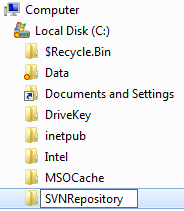
Create a folder on your computer to contain the Repository.  This is not going to contain the “working copy” of your code, it will contain the “Master” copy.  I recommend something like c:\SVNRepository.

Creating a Folder in Windows

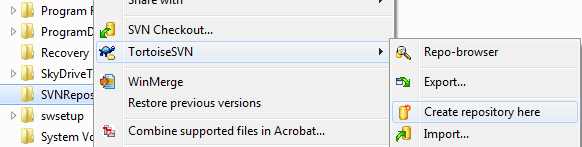
  1. Right click on the folder you just created.  The TortoiseSVN tools should provide you an option to “TortoiseSVN\Create repository here”                             Create Repository Here for Subversion
    1. Do NOT click Create Folder Structure, just click OK.
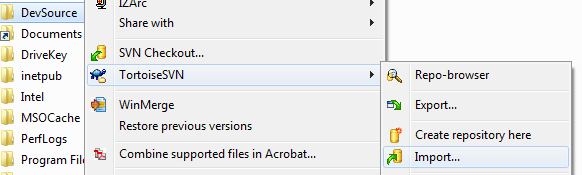
  2. Now go to the root folder that holds your source code (let’s assume it is c:\DevSource).  Right-click, choose “TortoiseSVN\Import”

     Image of Import

    1. Clear the “URL of repository, then click the … button to the right”.  Navigate to the folder of your repository (c:\SVNRepository)
    2. Click okClick OK to import
  3. Now, to designate the location you imported from as the working copy of your project, right click on the folder you imported from again, and select SVN Checkout

    Checkout from Svn

    1. Careful – the “URL of repository” should be the full path to c:\svnrepository
    2. You may need to change the defaulted value for Checkout directory because the UI may add svnrepository at the end of the path name.  Take that off.  The checkout directory should be the root level of your project folder (c:\DevSource)
    3. It will warn you that the folder is not empty.  This is good – you are going to overwrite your existing project files with the files you imported into the repository.
    4. If you did this correctly, all your files will still contain their original date/times.
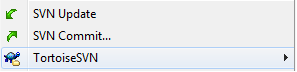
    5. If you did this correctly, and you right click on your project root folder, you will have two new options above TortoiseSVN on your menu, SVN Update and SVN Commit:

    Confirm SVN Folder

If you had any trouble, delete SVNRepository, copy the backup you made of your source files back into your project folder, and try again.

Posted in Dev Environment | 4 Comments »

 
Design a site like this with WordPress.com
Get started